

Version 2.4 now available! Works with Apple Creator Studio plus many improvements.
Your multi-workstation assistant that helps prepare your Mac and applications for the daily demands of post-production
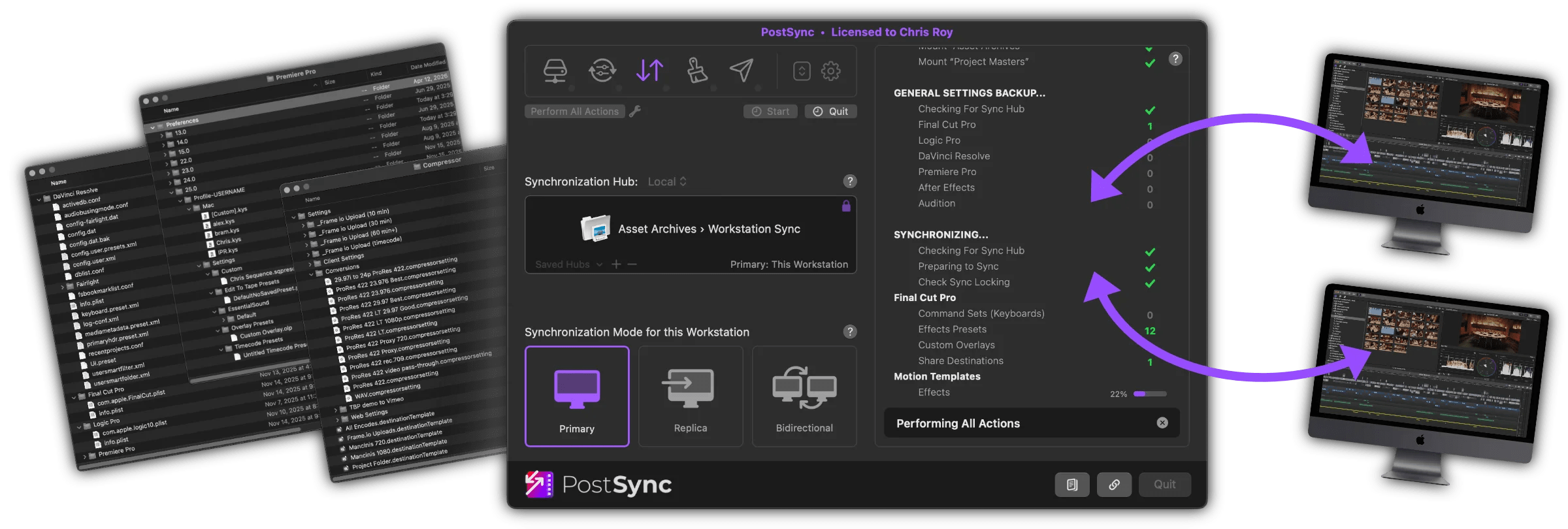

Synchronize
Settings, presets, templates, effects, workspaces and more

Backup/Transfer
Settings for 6 popular editing applications

Connect
Mount shared folders from Mac, Windows, NAS and more

Cleanup
Remove cache, render or any outdated file from any folder

Launch
Start applications in the order you want. Before or after Sync.

Scheduling
Perform PostSync’s actions on a schedule

Local or Cloud
Sync/Backup to a folder locally or to iCloud / Google Drive

Customizations
Adjust many actions to suite your needs
Works with many popular post-production applications


Other notable features…
- After Effects Migration tool for Plug-ins, Presets and Scripts. (Adobe doesn’t have a function to do this!)
- Auto-Start and Auto-Quit options to automate PostSync
- Tests connection to the internet to warn of issues or outages
- Action logging to keep track of PostSync’s processes
- Import/export Action Settings to easily transfer to other workstations
Download the 30 day FREE trial
“It was becoming a chore trying to keep various post-production presets, settings and fonts synched on all our macOS workstations. I had gone through years of using various Automator, AppleScript and third party sync apps that were just too complicated to keep up.”
“It was time to build my own solution that was simple to setup and launch. I ended up with the macOS app I’m calling PostSync.”
“Problem Solved.”
– PostSync creator, Chris Roy
How does PostSync work?
What is a Synchronization Hub
This is the central location (folder), that all workstations must be able to access, where all Synchronization and Backup file-sets are stored.
You may use any of these:


Tip: You can use a portable drive to take your settings on the road with you.
Synchronize Application Settings
Its easy to keep application settings, presets and more synchronized on all of your workstations…
Select a Synchronization Hub. (You may save several and switch between them; Project, Client Editor, etc.)
Select a role for each workstation: Primary, Replica or Bidirectional:


Run Synchronization during Auto-Start or manually with the Single Sync function.
Choose, by Application, which settings/templates are synced:
- Graphic Templates
- Effects Presets
- LUTs
- Custom Keyboards
- Workspaces
- Encode Settings
- User Fonts
- Built-in or Custom
PostSync can even fix/modify files that contain links to specific resources in the User’s folders. (Effects presets that point to 3rd party products.)
Backing up Application Settings
Backup post-production application settings and easily restore or transfer them to any workstation.
Works with:
- Final Cut Pro
- Logic Pro
- DaVinci Resolve
- Premiere Pro
- Audition
- After Effects.
Connecting to a Server or network share
PostSync can automatically connect to a shared folder to be used as a Synchronization Hub. This can be a Mac / Windows server or any accessible network attached file server. There’s also an option to eject the volume when PostSync has completed its chores.
Cleanup Render Files/Caches
Choose from a set of common application render/cache locations or customize your own and PostSync will delete (or Trash) the oldest files according to a time period you set. Even tame your downloads folder.
There’s really no limit to the location or types of files you can manage.
Launching Applications
Auto-launch applications in any order including a delay between each. Choose from any app on your computer and you can launch it before or after synchronize during PostSync’s auto-start sequence.